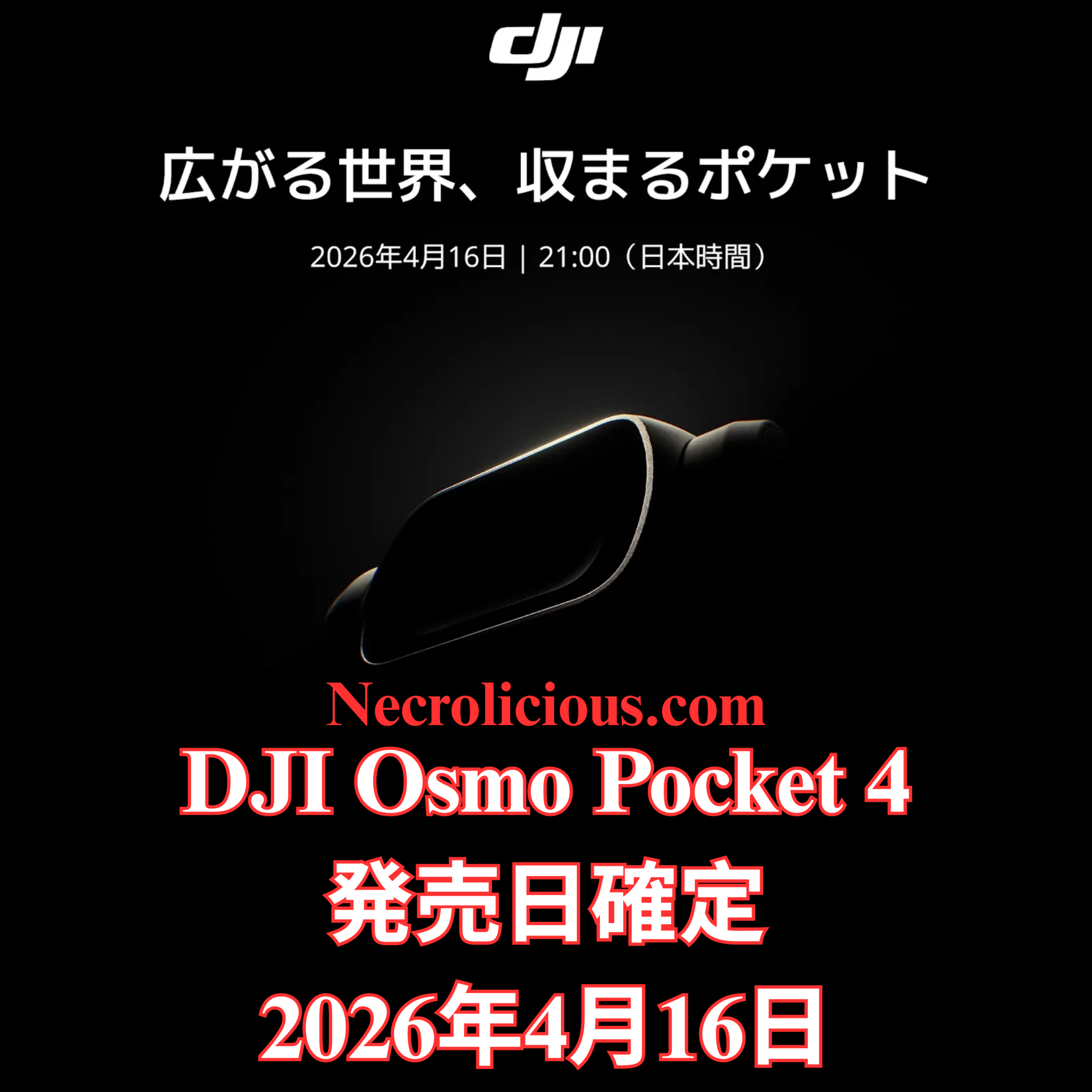
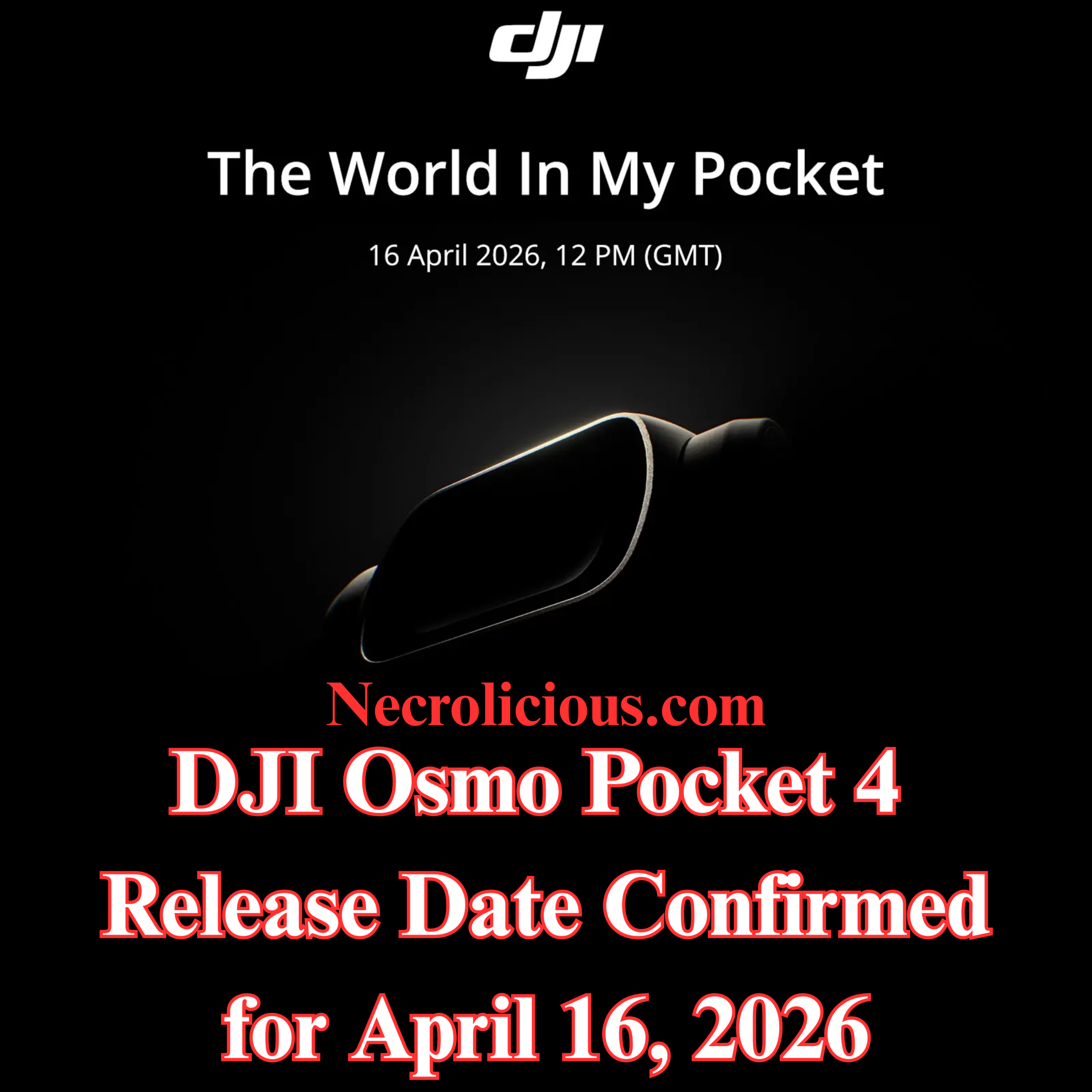
DJI has officially teased the launch of its next-generation pocket gimbal camera with the Osmo Pocket 4 set to debut on April 16, 2026 at 12:00 PM GMT. The announcement highlights the compact device’s ability to capture “the world in my pocket” & builds anticipation among content creators & videographers worldwide.
A Brief History of the Osmo Pocket Series
Since its debut, the Osmo Pocket line has become a favourite among travellers, vloggers & filmmakers seeking professional stabilisation in an ultra-portable form. The Osmo Pocket 3 introduced significant upgrades in image quality battery life & creative features which helped solidify DJI’s position in the pocket-sized camera market. With the Osmo Pocket 4, DJI appears ready to refine the formula further, focusing on even greater accessibility for capturing high-quality footage on the go.
While full specifications remain under wraps ahead of the official event, early indications from the teaser suggest continued emphasis on intuitive design & cinematic results. The device is expected to appeal to both amateur enthusiasts & professional creators who require reliable performance without bulky equipment.
The global launch marks an important milestone as DJI expands availability simultaneously across regions. Interested parties can learn more via the official teaser page at dji.com & should monitor DJI’s channels for pre-order information pricing & complete feature details once revealed.
For those who have followed the series the timing feels particularly timely coming nearly two years after the previous model. The Osmo Pocket 4 promises to deliver the signature three-axis stabilisation that has defined the range alongside potential improvements in low-light performance & creative tools.
Content creators & photography enthusiasts alike will no doubt mark the date as DJI continues to push the boundaries of what a pocket-sized camera can achieve. The Osmo Pocket 4 represents the latest evolution in portable cinematic technology & early reactions suggest strong interest across the community.
Necrolicious “Photogenic” Funny Nosferatu Vampire Meme 100% Cotton Unisex Tee Buy on Printify
Unless otherwise noted, image assets above are NOT original content & are shared under fair use doctrine with NO claims to authorship or ownership. Contact necrolicious@necrolicious.com for credit or removal.
This post was sponsored by…ME! If you’d like to support, please buy my original meme merchandise or check out my affiliate links to get yourself some other cool things. Additional affiliate links may be contained in the above article. If you click on an affiliate link & sign up/make a purchase, I may earn a commission. This does not increase the price you pay for the product or service, so it helps support this website at no cost to you.
If you would like to support my work more directly, I accept voluntary cryptocurrency donations in BTC, ETH, XRP & XLM sent directly to necrolicious.x. necrolicious.x is an Unstoppable Domains name that resolves to the wallet addresses I have configured. Simply enter necrolicious.x as the recipient in a supported wallet (such as Trust Wallet, Blockchain.com or others that support Unstoppable Domains). Donation Disclaimer: All cryptocurrency donations sent to me are final, voluntary gifts & are non-refundable & irreversible. These donations are not tax-deductible since I am not a registered charitable organization, & no tax receipts will be issued. No memo or destination tag is required for XRP or XLM donations, as the domain resolves directly to a wallet address. By sending a donation you acknowledge & accept all associated risks, including cryptocurrency price volatility, network fees & potential loss of funds due to incorrect network selection or transaction errors. I am not responsible or liable for any loss related to your donation. No goods, services or other benefits are provided in exchange for donations. This is not financial, tax, legal or investment advice. Please consult a qualified professional regarding any implications of your donation.
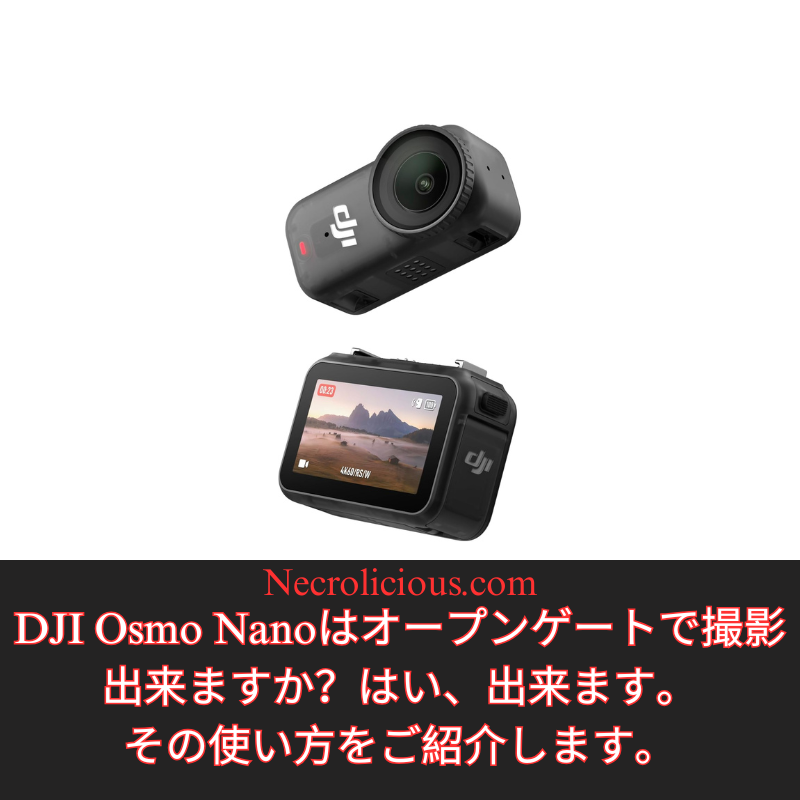
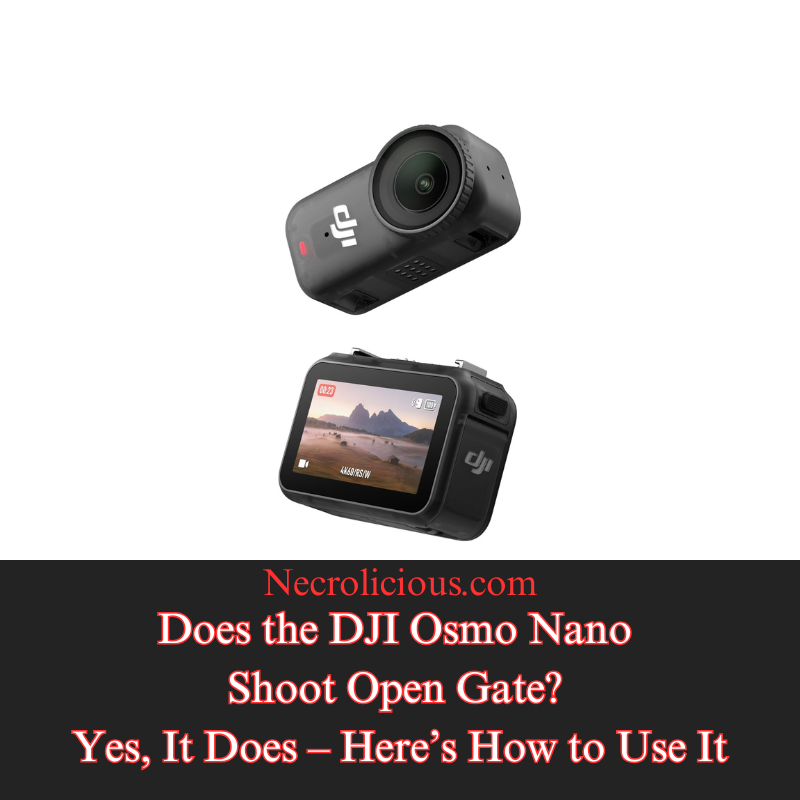
For a company as big as DJI & a camera as prestigious as the Osmo Nano, there is surprisingly little information available when searching for answers to the question “Can the DJI Nano shoot open gate?”. The short answer is yes, & the Osmo Nano does so with impressive results through its full-sensor 4K 4:3 recording capability. If you are not familiar with open gate, it is the most versatile format that anyone can shoot in. The key advantage of shooting open gate is the versatility it offers when editing as it gives you a much wider field from which to choose when downsizing your video to meet ratio limitations enforced by social media platforms. If you are having trouble understanding this simply recognise most devices especially phone cameras force you to choose between 9:16 ratio, 16:9 ratio or 1:1 square ratio. With open gate rather than locking yourself to a dedicated frame you utilise your camera’s entire sensor. You get the entire width of 16:9 & the entire height of 9:16. This full-sensor approach opens up creative possibilities that feel liberating once experienced, transforming a single take into multiple polished deliverables ready for any platform.
Open gate shooting refers to capturing video using the full readout of the camera’s sensor without applying any in-camera crop. On the DJI Osmo Nano this is achieved through its 1/1.3-inch CMOS sensor which records in native 4:3 resolution at up to 4K. The result is footage that preserves maximum pixel information across both the horizontal & vertical axes. Unlike traditional locked aspect ratios that discard sensor data at the point of capture open gate defers all framing decisions to post-production. This approach mirrors professional cinema workflows where the full negative or digital sensor is exposed first & then cropped or reframed as needed. For the Osmo Nano the open gate mode effectively combines the benefits of a wide horizontal field with an extended vertical canvas allowing creators to extract multiple deliverables from a single take without quality loss. It is this flexibility that makes open gate particularly exciting for creators who value efficiency & creative control in fast-paced or unpredictable shooting environments.
Open Gate Use Cases for Content Creators
The practical applications of open gate on the DJI Osmo Nano extend across diverse shooting scenarios where flexibility is paramount. Walk-and-talk vloggers & run-and-gun filmmakers benefit from the ability to capture dynamic movement without committing to a specific orientation upfront. Action & POV filming benefit immensely because the camera’s magnetic mounting system & compact form factor encourage spontaneous angles, yet open gate ensures footage can later be reframed for any orientation. Travel vloggers & documentary makers use it to capture immersive wide scenes that can be repurposed into both landscape hero shots & portrait social clips. In automotive or product cinematography, including reviews & unboxings, a single pass records full-resolution horizontal & vertical versions simultaneously, eliminating the need for multiple setups or retakes. Even for corporate or event videography where deliverables must serve both widescreen presentations & vertical social stories, open gate streamlines workflow & reduces storage demands. The DJI Osmo Nano’s RockSteady stabilisation pairs naturally with this format ensuring that reframed extracts remain smooth & professional regardless of the final ratio chosen in editing software.
The 4:3 Ratio in Open Gate Workflow
The 4:3 ratio serves as the foundation for open gate shooting on the DJI Osmo Nano because it closely matches the sensor’s native proportions. At 4K resolution this translates to 3840 by 2880 pixels, providing a balanced canvas (wider than it is tall). When shooting in 4:3 open gate you retain the full horizontal width required for cinematic landscape shots while gaining extra vertical pixels that can be used for cropping. In post-production editors simply mask or crop the top & bottom to produce a clean 16:9 frame or retain more of the height for vertical compositions. This ratio maximises creative freedom without compromising resolution & it future-proofs footage against evolving platform requirements. For users of the Osmo Nano selecting 4:3 in the camera’s video settings unlocks the true potential of the sensor & transforms a single recording into a multi-format asset ready for any distribution channel.
The 3:4 Ratio & Its Role in Vertical Content
While 4:3 is the horizontal open gate baseline the 3:4 ratio represents its vertical counterpart & proves equally valuable for portrait-oriented deliverables. Essentially a 90-degree rotation of 4:3 (taller than it is wide), the 3:4 frame utilises the sensor’s full height while narrowing the width to create a taller composition ideal for certain social formats. On the DJI Osmo Nano open gate footage shot in 4:3 can be rotated & cropped in editing to achieve a native 3:4 output at high resolution. This is particularly useful for platforms that favour slightly less extreme vertical framing than 9:16 or for hybrid projects that mix landscape & portrait elements within the same timeline. Creators working on Instagram carousels, YouTube community posts or legacy broadcast formats appreciate 3:4 because it offers a more classical proportion than ultra-tall 9:16 yet still delivers the pixel density needed for sharp downscaling. The ability to extract 3:4 from open gate footage eliminates guesswork at capture time & ensures consistent quality across mixed-media campaigns.
Social Media Ratio Standards & Optimisation for X
Social media platforms enforce specific aspect ratios for optimal display & performance & open gate shooting on the DJI Osmo Nano provides the most efficient way to satisfy them all from one master file. Horizontal 16:9 remains the standard for YouTube long-form & traditional video ads while vertical 9:16 dominates TikTok, Instagram Reels & YouTube Shorts. Square 1:1 continues to perform well for certain Instagram & Facebook posts. The 3:4 ratio fits niche applications such as Pinterest or older mobile feeds. X, formerly Twitter has evolved its video standards to support a wide range of ratios but performs best with 16:9 for desktop viewing, 9:16 for mobile-first scrolling & 1:1 for quick engagement. X recommends uploading at 1920 by 1080 for horizontal or 1080 by 1920 for vertical to avoid compression artefacts & it automatically detects & displays the correct orientation. Because open gate on the Osmo Nano captures surplus pixels in both dimensions, creators can export platform-specific versions without re-shooting or losing detail. Notably the 3:4 extracts from open gate footage deliver videos that are taller than wide while avoiding the pronounced shrinking effect often seen with 9:16 content. In the latest X mobile feed these proportions create a more balanced & visually appealing presence that fills the screen elegantly without feeling overly constrained. This single-source workflow saves time, reduces editing overhead & ensures maximum reach across X & competing networks where vertical video now drives the majority of impressions.
How to Access & Use Open Gate Mode on the DJI Osmo Nano
Now that you have read all about open gate you are probably eager to try it yourself. The process is straightforward but if you have already updated to the latest DJI Nano firmware this unfortunately may have complicated matters slightly. What came with the latest firmware update was a ratio lock. This lock means that you no longer have to rely solely on camera orientation in order to film in 9:16 or 16:9 & can instead move the camera body as freely as you wish without having to worry about output orientation. However, if you utilise 9:16 or 16:9 locked orientation modes you will not see any open gate option. This might prompt you to think “Is my model too old to include open gate?” or “Did DJI remove this feature?” The answer is neither. You can still access open gate but what you must first do is go back to the orientation menu where you pick 16:9 or 9:16 & instead pick the very first option of “Automatic.” Only then will you be able to see the 3:4 open gate option for 1080p, 2.7K & 4K. In case it was not abundantly clear, being in automatic mode means that you are absolutely not frame locked & must position the camera body yourself if you wish to have 4:3 or 3:4 orientation. While it is a little unfortunate that it has become somewhat more difficult to find open gate, rest assured that it is there. Perhaps in a future firmware update DJI will add it to the ratio lock alongside the 9:16 & 16:9 to make it just a little bit easier for everyone to find.
To access open gate mode follow these steps:
Open the orientation menu in the camera settings.
Select Automatic instead of the locked 9:16 or 16:9 modes.
The 3:4 open gate option will now appear for 1080p, 2.7K. & 4K.
By leveraging the DJI Osmo Nano’s open gate capability, content creators gain unprecedented control over final framing & distribution. The camera’s full-sensor approach combined with its portable design & robust stabilisation positions it as a strategic tool for anyone producing video across multiple platforms.
The content of this article pertains specifically to the DJI Osmo Nano. Some readers may wonder “Does the world-famous DJI Pocket 3 also shoot in open gate?: Unfortunately, it does not, as of the time of this writing. However, the potential exists should DJI ever opt to include it in a future firmware update. In the meantime anyone that wishes to have the 4:3 or 3:4 open gate ratio can also export any video in this format using the DJI Mimo app. However, this is a little bit of a backward concept because the point of recording in open gate is to have a wider space to zoom in on specific details such as a particular filming subject being tracked. Therefore there is little point in this feature apart from nicely filling out the space allotted to videos in posts on the X feed.
Unless otherwise noted, image assets above are NOT original content & are shared under fair use doctrine with NO claims to authorship or ownership. Contact necrolicious@necrolicious.com for credit or removal.
This post was sponsored by…ME! If you’d like to support, please buy my original meme merchandise or check out my affiliate links to get yourself some other cool things. Additional affiliate links may be contained in the above article. If you click on an affiliate link & sign up/make a purchase, I may earn a commission. This does not increase the price you pay for the product or service, so it helps support this website at no cost to you.
If you would like to support my work more directly, I accept voluntary cryptocurrency donations in BTC, ETH, XRP & XLM sent directly to necrolicious.x. necrolicious.x is an Unstoppable Domains name that resolves to the wallet addresses I have configured. Simply enter necrolicious.x as the recipient in a supported wallet (such as Trust Wallet, Blockchain.com or others that support Unstoppable Domains). Donation Disclaimer: All cryptocurrency donations sent to me are final, voluntary gifts & are non-refundable & irreversible. These donations are not tax-deductible since I am not a registered charitable organization, & no tax receipts will be issued. No memo or destination tag is required for XRP or XLM donations, as the domain resolves directly to a wallet address. By sending a donation you acknowledge & accept all associated risks, including cryptocurrency price volatility, network fees & potential loss of funds due to incorrect network selection or transaction errors. I am not responsible or liable for any loss related to your donation. No goods, services or other benefits are provided in exchange for donations. This is not financial, tax, legal or investment advice. Please consult a qualified professional regarding any implications of your donation.
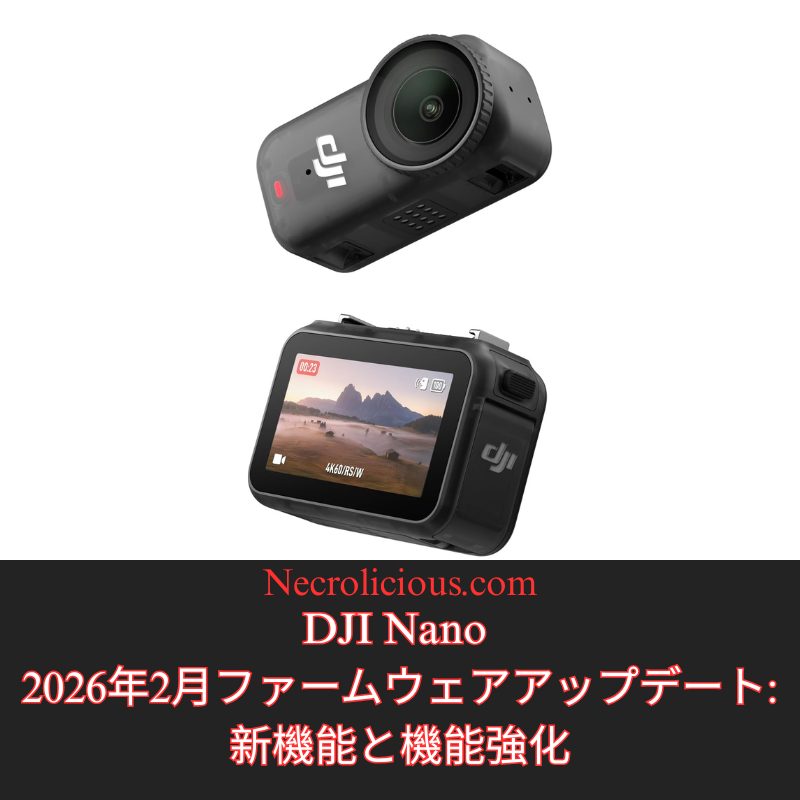
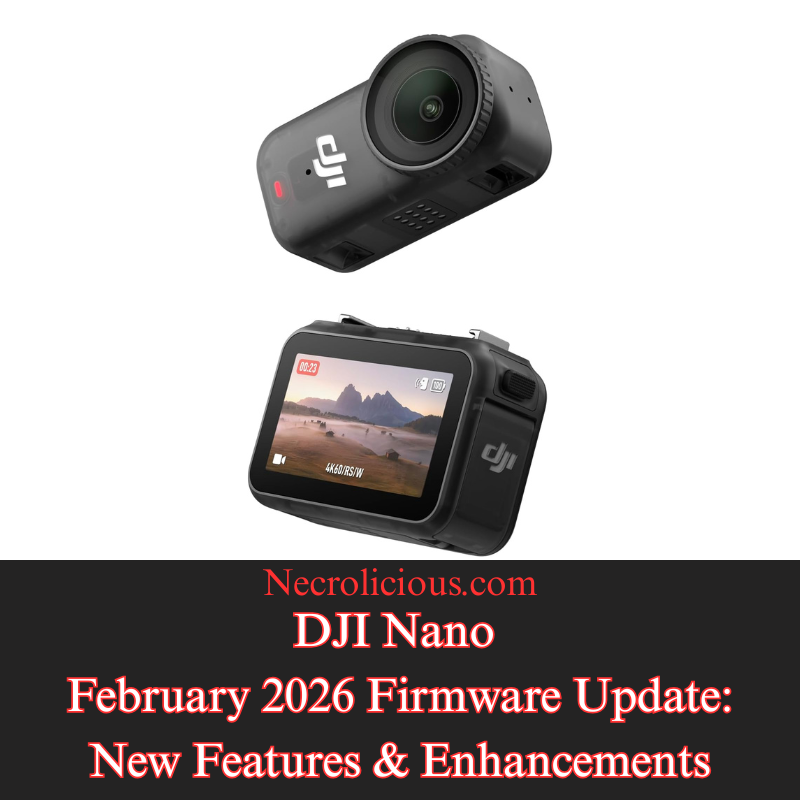
In the rapidly evolving world of portable photography & videography, DJI continues to refine its offerings through regular firmware updates. The most recent update for the DJI Nano, just released in February 2026, brings the firmware version to v01.01.27.51. Available via the DJI Mimo app for both iOS (v2.6.12) & Android (v2.6.12), this update introduces practical improvements designed to enhance creative flexibility & device reliability. For users encountering installation issues, DJI advises restarting the camera & app, ensuring Wi-Fi & Bluetooth are enabled, & reconnecting before attempting the update again. Persistent problems should prompt contact with DJI Support. This follows a prior update in November 2025 (v01.01.16.50), which added features such as Natural Wide FOV, HorizonCorrection, & improved microphone integration with the vision dock. Below, we explore the new additions in detail, highlighting how they benefit content creators & enthusiasts.
Native 9:16 Aspect Ratio Support in Video Mode
The addition of support for a 9:16 aspect ratio in video mode represents a user-focused enhancement tailored to the growing demand for vertical content in social media & short-form video platforms. This feature allows the DJI Nano to natively capture footage in a portrait orientation, which aligns perfectly with formats used on apps like TikTok, Instagram Reels, & Snapchat, eliminating the need for post-production cropping that could degrade image quality or alter the intended composition. By adjusting the sensor’s output to prioritise height over width, users can achieve fuller utilisation of the camera’s resolution—typically up to 4K in this mode—resulting in sharper, more immersive vertical videos. This is especially beneficial for creators on the go, such as vloggers or social influencers, as it streamlines the workflow from capture to upload, saving time while maintaining professional-grade results. Additionally, it opens up creative possibilities for storytelling, like emphasising tall subjects or vertical panning shots, without compromising on the device’s gimbal stabilisation or intelligent shooting modes.
Introduction of Film Tone in Photo & Video Modes
The introduction of the “Film Tone” option to image parameters in both photo & video modes brings a layer of cinematic sophistication to the DJI Nano’s capabilities, allowing users to apply pre-set colour grading effects that mimic the aesthetic of traditional film. This mode adjusts key elements such as colour balance, contrast, & saturation to produce a more dramatic & evocative look, often with warmer tones, deeper shadows, & controlled highlights that evoke the feel of classic cinema. Unlike standard colour profiles, Film Tone is designed for users who want to infuse their content with artistic flair right at the point of capture, reducing reliance on editing software for basic corrections. It can be particularly advantageous in low-light scenarios or when shooting narrative content, as it enhances dynamic range & preserves details in highlights & shadows. Creators can toggle this option via the DJI Mimo app, experimenting with it alongside other parameters like sharpness or exposure to customise the output, making the Nano a more versatile tool for aspiring filmmakers or photographers seeking a polished, ready-to-share result.
Resolution of Minor Bugs for Improved Performance
The fixing of minor bugs in this firmware update underscores DJI’s commitment to ongoing device optimisation, addressing subtle issues that could impact user experience without introducing major disruptions. These corrections typically target areas like software stability, such as resolving occasional app crashes during live previews, improving Bluetooth connectivity reliability for smoother remote control, or refining algorithm accuracy in features like subject tracking or auto-exposure. While the specifics are often kept general to protect against potential exploits, such updates collectively enhance the Nano’s performance, leading to fewer interruptions during shoots & more consistent battery efficiency. For users, this means a more dependable tool in real-world scenarios, whether filming action sequences or casual clips, & it helps prevent cumulative frustrations that might arise from unaddressed glitches over time. Overall, these bug fixes contribute to the longevity & resale value of the device by ensuring it remains responsive & up-to-date with evolving user needs.
This firmware update positions the DJI Nano as a competitive choice in the compact camera market, catering to both amateur & professional users who value portability without sacrificing quality. By incorporating vertical video support, cinematic colour options, & essential stability improvements, DJI addresses key trends in content creation while maintaining the device’s core strengths in gimbal technology & ease of use. Users are encouraged to update promptly to access these features, & those new to the DJI ecosystem may find the Nano’s blend of innovation & reliability particularly appealing. For the latest details & troubleshooting, refer to the official DJI website or community forums.
Unless otherwise noted, image assets above are NOT original content & are shared under fair use doctrine with NO claims to authorship or ownership. Contact necrolicious@necrolicious.com for credit or removal.
This post was sponsored by…ME! If you’d like to support, please buy my original meme merchandise or check out my affiliate links to get yourself some other cool things. Additional affiliate links may be contained in the above article. If you click on an affiliate link & sign up/make a purchase, I may earn a commission. This does not increase the price you pay for the product or service, so it helps support this website at no cost to you.
If you would like to support my work more directly, I accept voluntary cryptocurrency donations in BTC, ETH, XRP & XLM sent directly to necrolicious.x. necrolicious.x is an Unstoppable Domains name that resolves to the wallet addresses I have configured. Simply enter necrolicious.x as the recipient in a supported wallet (such as Trust Wallet, Blockchain.com or others that support Unstoppable Domains). Donation Disclaimer: All cryptocurrency donations sent to me are final, voluntary gifts & are non-refundable & irreversible. These donations are not tax-deductible since I am not a registered charitable organization, & no tax receipts will be issued. No memo or destination tag is required for XRP or XLM donations, as the domain resolves directly to a wallet address. By sending a donation you acknowledge & accept all associated risks, including cryptocurrency price volatility, network fees & potential loss of funds due to incorrect network selection or transaction errors. I am not responsible or liable for any loss related to your donation. No goods, services or other benefits are provided in exchange for donations. This is not financial, tax, legal or investment advice. Please consult a qualified professional regarding any implications of your donation.
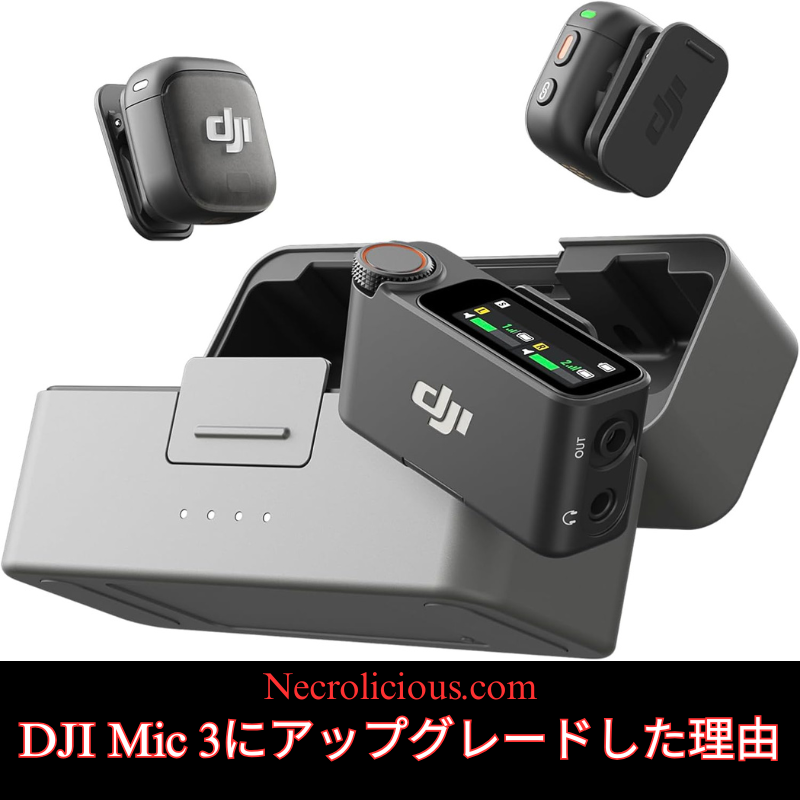
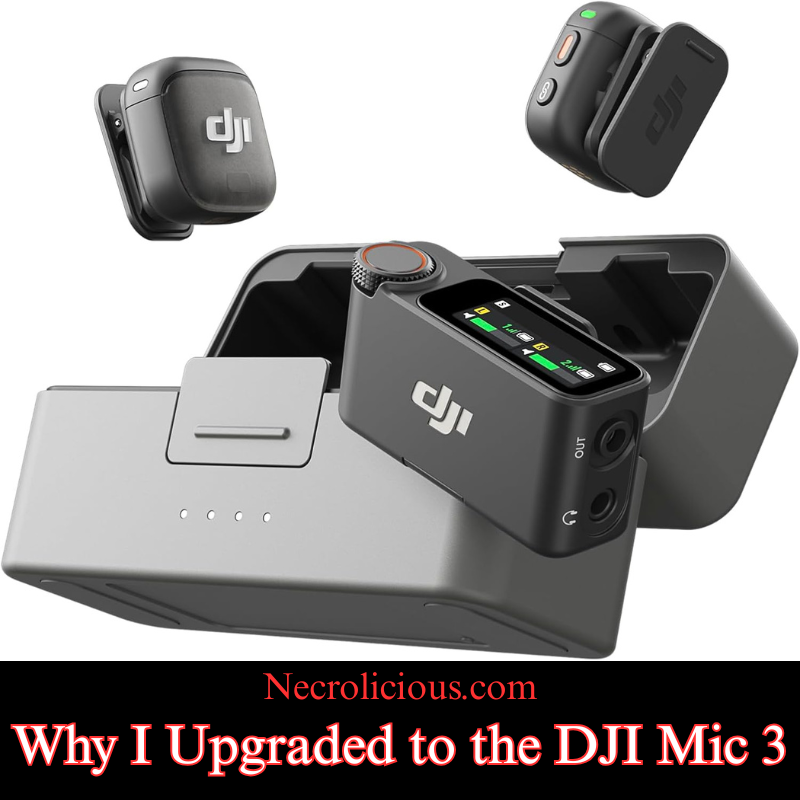
I was always very satisfied with my DJI Mic 2 & probably would not have upgraded to the Mic 3, were it not for the current 14% off sale which continues until February 10th (2026). Since the Mic 3 became 14% off & I got an additional 2,828 Rakuten points for the purchase, it just made sense to sell off my Mic 2 & buy to the Mic 3 — the sale basically made it free for me to upgrade! But that’s not the only reason I upgraded from the DJI Mic 2 to the DJI Mic 3. There are several other reasons, which I will delve into in this article, so you can be better informed about your own decision as to whether or not to upgrade from a prior-generation DJI Microphone. Without further ado, here are my reasons:
There is also the matter of the memory supply crunch which will be affecting technology for at least the next couple of years. I have written my own reports on this topic, but I am not the only one ringing the alarm bell to get what devices you can before major repricing; other well-respected technological news outlets are now reporting similar cautions, urging people to buy a Nintendo Switch 2 now before a global repricing occurs. I don’t think this will remain specific to the Nintendo Switch 2 alone, but rather ANY device which has memory components, such as the Mic 3. This crunch stems from ongoing global supply chain issues & increased demand for AI-driven devices which could drive up prices for memory-intensive products like the Mic 3’s expanded 32GB storage. If you are eyeing an upgrade, acting soon might avoid future cost hikes similar to those anticipated for gaming consoles & smartphones.
Enhanced On-Board Memory & Related Features
Speaking of memory the onboard recording on the Mic 3 is four times that of the Mic 2. The Mic 2 only had 8 gigabytes of internal memory whereas the Mic 3 has 32 gigabytes. Plus it allows you to dual record tracks of both the native audio input & the AI-enhanced audio adjusted input. Beyond storage, the Mic 3’s dual-band wireless technology ensures more stable connections in crowded environments & its voice tone presets let you tailor audio output on the fly—options like “natural” for interviews or “bright” for energetic content. Compatibility is broad including seamless integration with DJI cameras smartphones & laptops via adapters, though I recommend testing with your specific setup.
Concert Recording?
On the subject of adjustments, this should ostensibly allow better recording of live concerts, something that the Mic 2 was notoriously bad at. Try as I may, no Mic 2 settings configuration stopped the audio from being so unusably bad that I gave up & went on to recording a live concert using the Pocket 3’s onboard recorder (which sounds fine & non-distorted) instead of any external microphone whatsoever. The Mic 3’s enhancements could mitigate such distortion from high-decibel events by capturing a wider dynamic range. Though there were several articles on the topic of the Mic 2’s poor concert recording capabilities, I have not been able to source any content, positive or negative, in regards to concert use for the Mic 3, so I will personally conduct tests in the coming weeks using the various settings to see if I can get non-distorted audio in a live concert setting. If successful, it could make the Mic 3 a viable option for capturing live performances. If you do not intend to record concerts, at all this isn’t anything you need to worry about, no matter which generation of the Mic series you possess. The Mic 2 has always performed exceptionally well when simply speaking into it, as most creators do–but it is something to keep in mind if you actually intend to record concerts, whether you are a musician or a spectator.
Enhanced Communication via Numerology
Lastly, this is a little bit more on a personal note that many people may not take into account or take seriously at all, but in numerology the number 3 is the number of communication. Therefore, I think that having a device branded with the number 3 will metaphysically enhance my communication skills & help me convey what I wish to to my viewing audience. Like astrology, etc. I think it’s good fun & I enjoy things such as this, but no need to take it into account if you are not spiritual or superstitious.
To help illustrate the key differences at a glance here is a detailed comparison of specifications between the DJI Mic 2 & Mic 3 based on official details & hands-on reviews:
Feature
DJI Mic 2
DJI Mic 3
Internal Storage (per Transmitter)
8 GB (approx. 14 hours of 48kHz/24-bit audio)
32 GB (approx. 56 hours of 48kHz/24-bit audio)
Battery Life (Total with Charging Case)
Up to 18 hours
Up to 28 hours
Transmitter Dimensions
46.06 × 30.96 × 21.83 mm
28.77 × 28.34 × 16.35 mm (with magnetic clip)
Transmitter Weight
28 g
16 g (with magnetic clip); approx. 10 g without
Wireless Range (Line of Sight)
Up to 250 m (FCC); 160 m (CE)
Up to 400 m (FCC); 250 m (CE) with dual-band (2.4/5 GHz) support
Two levels (standard & strong) with AI enhancements
Additional Features
3.5mm jack for external mics; basic noise cancelling
Timecode syncing for multi-camera shoots; voice tone presets (e.g. natural, warm, bright); supports up to 4 transmitters; AMOLED touchscreen with rotary knob on receiver; no 3.5mm jack
Wireless Technology
2.4 GHz
Dual-band 2.4/5.8 GHz with automatic frequency hopping & Bluetooth integration
This table highlights tangible upgrades in portability battery life & audio flexibility which influenced my decision but also underscores trade-offs like the lack of a 3.5mm jack.
Pros & Cons of Upgrading to the DJI Mic 3
While the Mic 2 remains a solid choice for most users the Mic 3 introduces refinements that could justify an upgrade depending on your needs. Here is a balanced overview tied to common scenarios:
Pros:
Enhanced Portability for On-the-Go Creators: The transmitters are significantly smaller & lighter making them ideal for vloggers or mobile journalists who prioritise discretion & comfort during long shoots. For instance if you are filming travel content or interviews the reduced bulk (from 28g to 16g) means less fatigue without sacrificing audio quality.
Superior Battery Life & Range for Extended Use: With up to 28 hours total battery (versus 18 hours) & a 400m range this suits event videographers or drone operators needing reliable wireless performance in larger venues or outdoors. It reduces the need for mid-shoot recharges & minimises dropouts.
Advanced Audio Features for Professionals: Dual-file recording (native & AI-processed) voice tone presets & two-level noise cancellation allow for better post-production flexibility. This is a boon for podcasters or filmmakers dealing with noisy environments or requiring customised sound profiles like a “warm” tone for voiceovers.
Timecode Syncing for Multi-Device Workflows: If you work with multiple cameras (e.g. DJI Osmo Pocket or cinema rigs) the built-in timecode ensures seamless audio-video alignment saving hours in editing. This is particularly valuable for professional video production teams.
Cons:
Loss of 3.5mm Jack for External Mics: As mentioned this limits compatibility with lavalier or shotgun mics which could be a dealbreaker for users relying on specialised audio inputs. Stick with the Mic 2 if you need this versatility.
Potential Overkill for Beginners: Features like timecode & dual-band may go unused by hobbyists or solo creators leading to unnecessary complexity. If your setup is simple (e.g. smartphone vlogging) the Mic 2 offers better value.
Ultimately weigh these against your workflow—for vloggers the pros in portability shine while professionals may appreciate the advanced tools but casual users might skip the upgrade.
The prior generations still work great & I would definitely recommend them for content creators that either do not have the funds or general interest in the Mic 3. For many use cases there is simply no need to upgrade to it &, for others, there are actual reasons why you would not want to upgrade such as the DJI Mic 3 not having a 3.5mm audio jack to which you can connect a lavalier mic or shotgun mic to, but in the entirety of the time that I have owned the Mic 2 which is just shy of two years now I have never once needed that audio jack except to plug in the windscreen.
Unless otherwise noted, image assets above are NOT original content & are shared under fair use doctrine with NO claims to authorship or ownership. Contact necrolicious@necrolicious.com for credit or removal.
This post was sponsored by…ME! If you’d like to support, please buy my original meme merchandise or check out my affiliate links to get yourself some other cool things. Additional affiliate links may be contained in the above article. If you click on an affiliate link & sign up/make a purchase, I may earn a commission. This does not increase the price you pay for the product or service, so it helps support this website at no cost to you.
If you would like to support my work more directly, I accept voluntary cryptocurrency donations in BTC, ETH, XRP & XLM sent directly to necrolicious.x. necrolicious.x is an Unstoppable Domains name that resolves to the wallet addresses I have configured. Simply enter necrolicious.x as the recipient in a supported wallet (such as Trust Wallet, Blockchain.com or others that support Unstoppable Domains). Donation Disclaimer: All cryptocurrency donations sent to me are final, voluntary gifts & are non-refundable & irreversible. These donations are not tax-deductible since I am not a registered charitable organization, & no tax receipts will be issued. No memo or destination tag is required for XRP or XLM donations, as the domain resolves directly to a wallet address. By sending a donation you acknowledge & accept all associated risks, including cryptocurrency price volatility, network fees & potential loss of funds due to incorrect network selection or transaction errors. I am not responsible or liable for any loss related to your donation. No goods, services or other benefits are provided in exchange for donations. This is not financial, tax, legal or investment advice. Please consult a qualified professional regarding any implications of your donation.
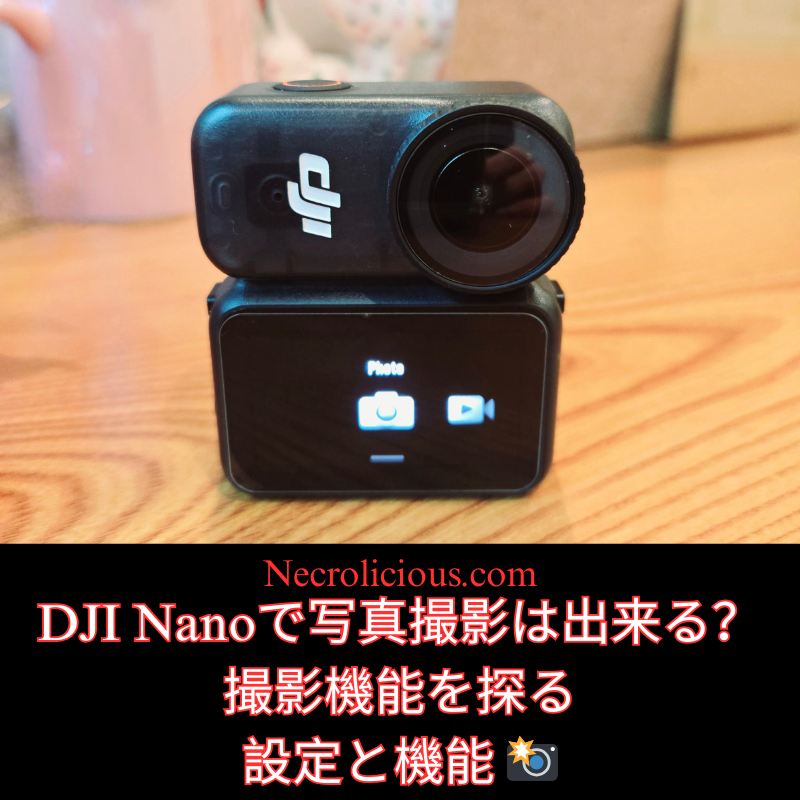
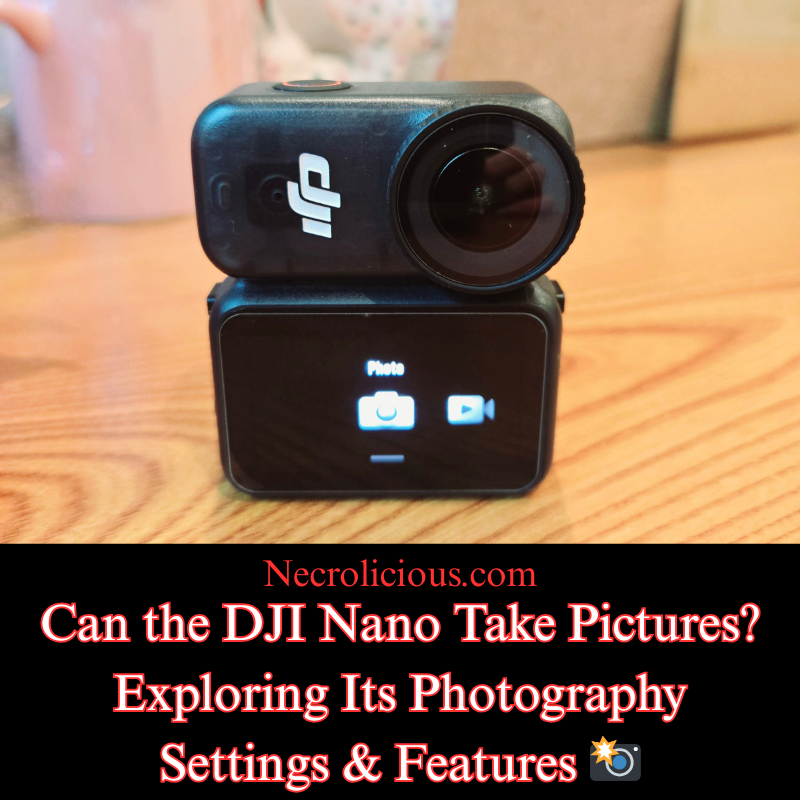
In the realm of compact action cameras, the DJI Osmo Nano stands out for its versatility & portability. Designed for adventurers & content creators alike, this device combines advanced video recording with robust still photography capabilities. If you have been wondering whether the DJI Osmo Nano can take pictures, the short answer is yes. Beyond that, it offers a range of settings & features that make it a compelling choice for capturing high-quality images on the go. This article delves into the specifics, highlighting how these elements enhance your photographic experience.
An Overview of the DJI Osmo Nano
The DJI Osmo Nano is an ultra-compact, wearable action camera featuring a modular design with a 1/1.3-inch sensor & a 143° wide field of view. Weighing just 52 grams for the camera unit, it is ideal for mounting in various positions, whether for sports, travel or everyday documentation. While primarily known for its 4K/60fps video recording & 10-bit D-Log M colour performance, the device’s photography functions provide professional-grade results in a diminutive form factor.
The DJI Osmo Nano excels in still photography thanks to its dedicated sensor & lens configuration, which support detailed image capture across diverse conditions. Below is a summary of the primary photo specifications:
Specification
Details
Sensor
1/1.3″ CMOS
Lens
FOV: 143°, Aperture: f/2.8, Focus Range: 0.35 m to ∞
ISO Range
100-25600
Electronic Shutter Speed
1/8000-30 s
Max Photo Resolution
6880 × 5160 (approximately 35 MP)
Still Photography Modes
Single, Countdown (Off/0.5/1/2/3/5/10 s), Burst (up to 30 images in 3 s)
Photo Formats
JPEG/RAW
These settings allow users to adapt to various lighting scenarios & creative needs. For instance, the wide ISO range facilitates low-light photography, while the burst mode is particularly useful for action shots where timing is critical. The option to shoot in RAW format provides greater flexibility in post-production, enabling adjustments to exposure & colour without loss of quality.
Additionally, the camera’s 13.5 stops of dynamic range ensure that images retain detail in both highlights & shadows, making it suitable for landscapes & high-contrast environments. Features such as Horizon Balancing & stabilisation, borrowed from DJI’s broader ecosystem, further aid in producing sharp, level photographs even during movement.
Practical Applications for Photography
With its magnetic mounting system & waterproof design (up to 10 m for the camera), the DJI Osmo Nano is well-suited for capturing stills in challenging settings. Whether documenting a hike, a pet’s adventures or urban scenes, the device’s photo modes integrate seamlessly with its video functions, allowing for hybrid content creation. Users can switch effortlessly between modes via the 1.96-inch touchscreen or the companion app, ensuring that spontaneous moments are never missed.
The DJI Osmo Nano not only answers the question of whether it can take pictures with a resounding yes but also delivers a suite of advanced settings & features that rival larger cameras. From its high-resolution sensor to versatile modes & formats, it empowers photographers to capture compelling images with ease. If you are seeking a compact yet capable device for your next project, the Osmo Nano merits consideration.
Unless otherwise noted, image assets above are NOT original content & are shared under fair use doctrine with NO claims to authorship or ownership. Contact necrolicious@necrolicious.com for credit or removal.
This post was sponsored by…ME! If you’d like to support, please buy my original meme merchandise or check out my affiliate links to get yourself some other cool things. Additional affiliate links may be contained in the above article. If you click on an affiliate link & sign up/make a purchase, I may earn a commission. This does not increase the price you pay for the product or service, so it helps support this website at no cost to you.
If you would like to support my work more directly, I accept voluntary cryptocurrency donations in BTC, ETH, XRP & XLM sent directly to necrolicious.x. necrolicious.x is an Unstoppable Domains name that resolves to the wallet addresses I have configured. Simply enter necrolicious.x as the recipient in a supported wallet (such as Trust Wallet, Blockchain.com or others that support Unstoppable Domains). Donation Disclaimer: All cryptocurrency donations sent to me are final, voluntary gifts & are non-refundable & irreversible. These donations are not tax-deductible since I am not a registered charitable organization, & no tax receipts will be issued. No memo or destination tag is required for XRP or XLM donations, as the domain resolves directly to a wallet address. By sending a donation you acknowledge & accept all associated risks, including cryptocurrency price volatility, network fees & potential loss of funds due to incorrect network selection or transaction errors. I am not responsible or liable for any loss related to your donation. No goods, services or other benefits are provided in exchange for donations. This is not financial, tax, legal or investment advice. Please consult a qualified professional regarding any implications of your donation.
Share this:
Cookie Consent
We use cookies to improve your experience on our site. By using our site, you consent to cookies.
Registers a unique ID on mobile devices to enable tracking based on geographical GPS location.
1 day
VISITOR_INFO1_LIVE
Tries to estimate the users' bandwidth on pages with integrated YouTube videos. Also used for marketing
179 days
PREF
This cookie stores your preferences and other information, in particular preferred language, how many search results you wish to be shown on your page, and whether or not you wish to have Google’s SafeSearch filter turned on.
10 years from set/ update
YSC
Registers a unique ID to keep statistics of what videos from YouTube the user has seen.
Session
DEVICE_INFO
Used to detect if the visitor has accepted the marketing category in the cookie banner. This cookie is necessary for GDPR-compliance of the website.
179 days
LOGIN_INFO
This cookie is used to play YouTube videos embedded on the website.